AFNI version info (afni -ver):
Precompiled binary macos_13_ARM_clang: May 22 2024 (Version AFNI_24.1.10 'Publius Septimius Geta')
Hi, I'm Jin.
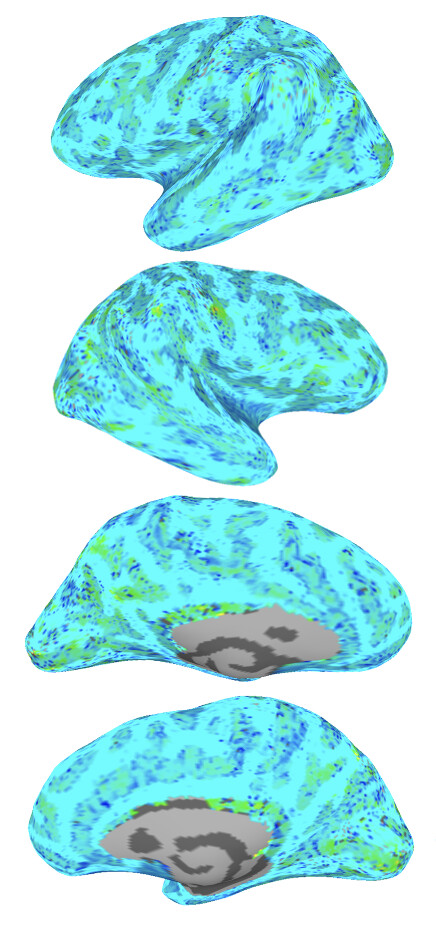
I'm working on SUMA for the surface analysis. Thanks to help from AFNI users, I get used to SUMA. However, I still manually move a 3D model and take a screenshot to make a figure like below.
This configuration appears to be adopted frequently. I found some features in Nilearn and Matlab, but I could not find it in ANFI/SUMA. So, I am concerned that my manual screenshot might provide the inconsistent view or size of brain at each direction of screenshot. Does AFNI/SUMA have a method to take a screenshot in the way to fix the direction of view and offer the consistent view and size of brain?
You can "drive" SUMA. We have some tutorials on SUMA here and here in the AFNI Academy videos. That means many of the keypresses can be done with DriveSuma commands.
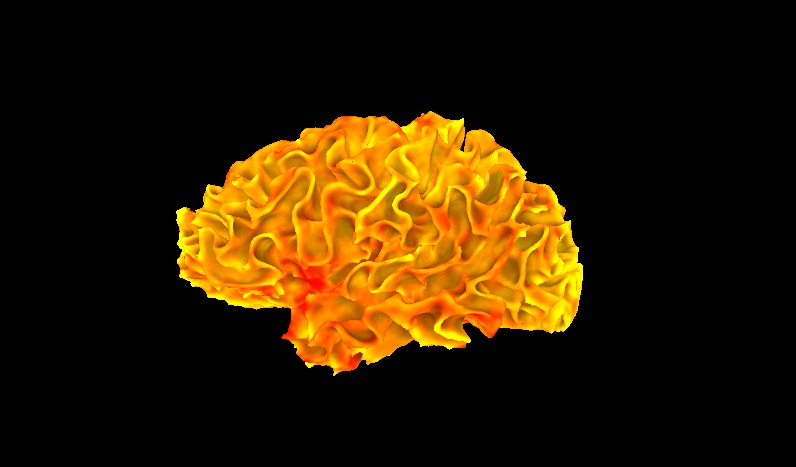
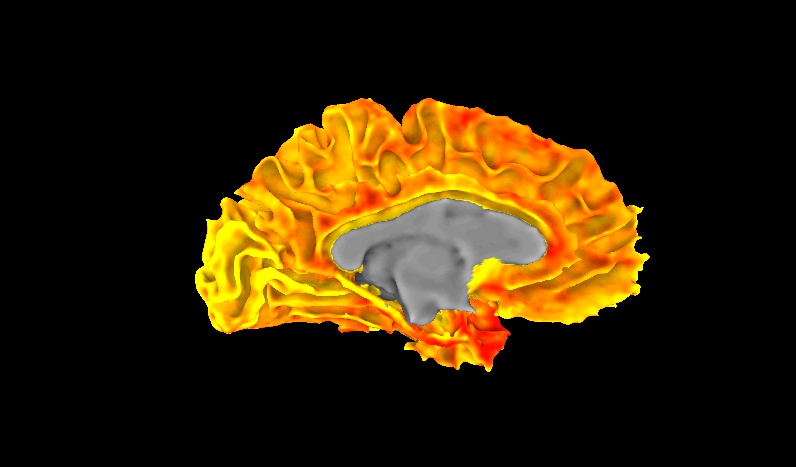
Let's say you start the SUMA GUI from the command line. You should include a port number with -npb .., so you can refer to it in other commands, for where to send the keypresses. Here is a script that shows how to do that, viewing a hemisphere. You can load data, etc. through driving SUMA. You can even control the SUMA viewer window size+dimensions, via the environment variable shown here.
#!/bin/tcsh

# An example of driving snapshotting of nice views in the SUMA GUI,
# which can be run in the AFNI_data6/FT_analysis/FT/SUMA directory
# of the AFNI Bootcamp.

# =============================================================================

setenv AFNI_ENVIRON_WARNINGS      NO
# control size of SUMA viewer, which basically controls image dims and
# resolution
setenv SUMA_Position_Original     "50 50 800 500"   # LcornX LcornY Xwid Ywid
setenv SUMA_DriveSumaMaxCloseWait 20
setenv SUMA_DriveSumaMaxWait      10
# this might be slightly slower but behave better on some systems
setenv LIBGL_ALWAYS_SOFTWARE      YES
# control output file name
setenv SUMA_AutoRecordPrefix      "DRIVE_SUMA_IMAGES/my_images"

# a nice way to get an open port number: find one not being used
set portnum   = `afni -available_npb_quiet`
set suma_sv   = "FT_SurfVol.nii"
set suma_spec = "std.141.FT_lh.spec"

# open the SUMA GUI and load surface
suma                                                     \
    -npb ${portnum}                                      \
    -niml                                                \
    -spec  ${suma_spec}                                  \
    -sv    ${suma_sv}     &

# load some overlay dataset
DriveSuma                                              \
    -npb $portnum                                      \
    -com surf_cont -load_dset "std.141.lh.thickness.niml.dset"

# sagittal profile, turn off one hemi, SNAP
DriveSuma                                              \
    -npb $portnum                                      \
    -com viewer_cont -key 'Ctrl+left'                  \
    -com viewer_cont -key 'Ctrl+r'

# sometimes short 'sleeps' between drive commands is helpful, to make
# sure they finish
sleep 1

# same hemi, other orient, SNAP
DriveSuma                                              \
    -npb $portnum                                      \
    -com viewer_cont -key 'Ctrl+right'                 \
    -com viewer_cont -key 'Ctrl+r'
I got it! Simply, I could use DriveSuma to automatize snapshot works instead of manually taking screenshots. That's great! For an unknown reason, the "Ctrl+right/left" did not work in my laptop (MacBook) at the SUMA viewer, but it works with DriveSuma command. So, no worries in automatizing the tedious snapshot works.
I believe that on a macOS, that keypress might have been stolen by the System Settings.
If you go to System Settings -> Keyboard-> Keyboard Shortcuts (button) -> Mission Control (on left tab) -> Mission Control, then I think you will see "Ctrl+rightarrow" and "Ctrl+leftarrow" used to "Move left a space" and "Move right a space", respectively. If you deselect those, the keypresses will work immediately in SUMA, and order in the Universe is restored.
Thanks to your tips, I could automatize the snapshot.
However, I am suffered from the one error in SUMA that I cannot understand.
I cannot change "I range" to decimal values. For example, DriveSuma -com surf_cont -I_range 0 0.5 resulted in I_range from 0 to 0. And command with 0 1.5 resulted in I_range from 0 to 1.0. It occurred at our server computer (Linux), but did not in my personal laptop (Mac).
Here are something that might be useful to figure out my issue.
With *_both.spec, even the manual change of I_range at the surface controller panel gave the same issue.
With one side hemisphere spec like *_lh.spec and *_rh.spec, the manual change won't give the same issue, but only the change using DriveSuma caused the same issue.
For -B_range, the decimal value issue does not occur.
afni -version : Precompiled binary linux_ubuntu_16_64: Aug 6 2025 (Version AFNI_25.2.07 'Gordian I')
suma -version: Compile Date: Aug 6 2025
I checked my dset file and my data type. It was float. So, it was not the problem of my dset file.
To the integer-only funniness about "I range": thanks for mentioning this. We actually happened to notice this just a couple weeks ago. This should be fixed if you update your AFNI version, and float values won't get round. (The fix looks to have gone in at AFNI_25.2.09, so just sliiiightly after your current version, but you might as well update to the most recent, anyways.)
After updating our AFNI/SUMA to 25.2.12, the float issue was resolved.
Thanks!
-Jin
The
National Institute of Mental Health (NIMH) is part of the National Institutes of
Health (NIH), a component of the U.S. Department of Health and Human
Services.